Connect juudd to ChatGPT
juudd is in ChatGPT’s plugin directory. Install it, sign in once, and ChatGPT can put the sites it writes for you online. It takes about a minute on chatgpt.com, in a computer’s browser.
Open juudd in ChatGPTWhat you need
- A ChatGPT account, used on the web. The directory is on every plan, and OpenAI says whether a plugin installs depends on your plan, workspace and region. We installed juudd on Plus.
- A juudd account, or an email address or Google account to make one with when you sign in.
- Nothing else. No URL to paste, no API key, and no Developer mode.
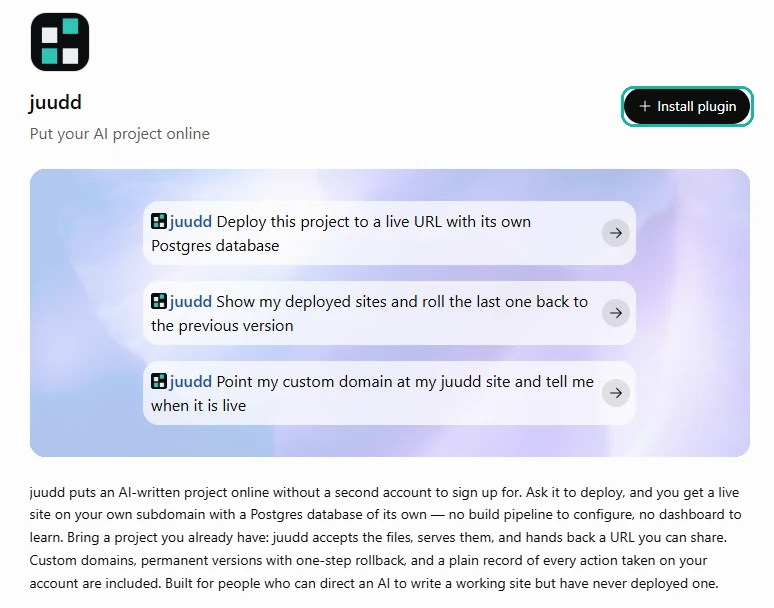
Open juudd’s listing and click Install plugin
Click Open juudd in ChatGPT above, or search for juudd under Plugins on chatgpt.com. Either way you reach juudd’s page in the directory.
Click Install plugin.
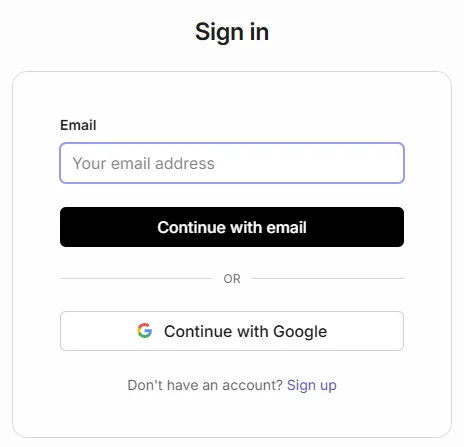
Sign in to juudd, once
ChatGPT takes you to juudd’s sign-in. Continue with your email or with Google; with no juudd account yet, Sign up makes one.
If it asks to let ChatGPT access your account, click Allow access.
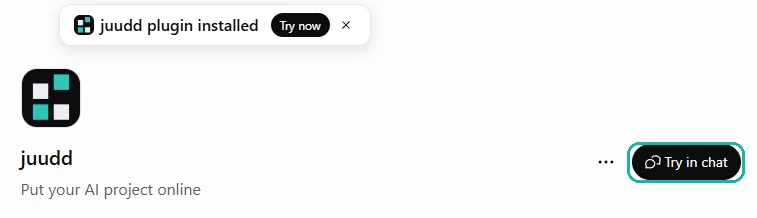
You are back on juudd’s listing, with juudd plugin installed at the top and Try in chat where Install plugin was.
Use it in a chat
Click Try in chat, or in any chat type @ and choose juudd. It sits in the message box as a juudd chip; type your message after it.

Check that it worked
With juudd picked, type:
“Say hello to juudd and tell me which account I’m signed in as.”
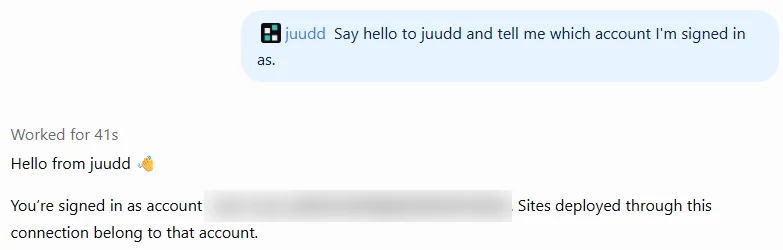
ChatGPT calls juudd and answers with your juudd account. The first call in a chat can take most of a minute, and ChatGPT says it is verifying the connection while it does. Then you are ready to ask for a website.
Without the directory: add it by hand
If Install plugin is not offered to you, ChatGPT’s Developer mode adds juudd by its connector URL instead. It is on Plus, Pro, Business, Enterprise and Education, on the web.
Open Settings → Security and login and switch Developer mode on. Then go to Plugins, click +, and fill in New Plugin: name it juudd, keep Server URL and paste the connector URL below, leave Authentication on OAuth, tick I understand and want to continue, and click Create.
Sign in as in step 2. If juudd’s page then says No app actions available yet, click Refresh.
If something goes wrong
There is no Install plugin button.
Check you are signed in to ChatGPT. On a Business, Enterprise or Edu workspace, the admin decides which plugins are allowed, so ask them. Otherwise, add juudd by hand, above.
Sign-in closed before it finished.
Open juudd’s listing again. If it still says Install plugin, click it and sign in again.
The @ menu lists juudd twice.
One of them is a juudd added by hand in Developer mode. Pick the one described “Put your AI project online”, and delete the other in Settings → Plugins if you no longer need it.
juudd is not in the @ menu.
Open juudd’s listing and check it says Try in chat rather than Install plugin.
Remove it
On juudd’s listing, click the ⋯ menu beside Try in chat and choose Uninstall. Removing only takes juudd out of ChatGPT. Your sites stay online and every version stays kept.
Connected? How to use juudd walks through what to ask for next, in plain words.