Connect juudd to Claude
Add juudd once as a custom connector, and Claude can put the sites it writes for you online. It takes about two minutes, and the same steps work at claude.ai and in Claude Desktop.
What you need
- A Claude account. Any plan works, Free included. Free allows one custom connector, so if you already have one, remove it first or upgrade.
- The connector URL above, copied whole. It ends in /mcp.
- A juudd account, or an email address or Google account to make one with when you sign in.
- Nothing else. No API key, no Client ID and no secret: Claude finds out from juudd how to sign you in.
Open Connectors and click Add
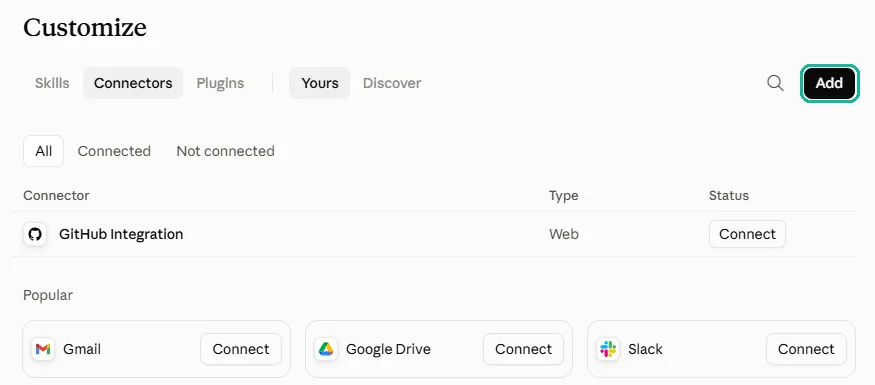
In claude.ai or Claude Desktop, open Customize in the sidebar, then the Connectors tab. Click Add at the top right.
On a Team or Enterprise plan, an Owner adds juudd for everyone first. The section further down says how.
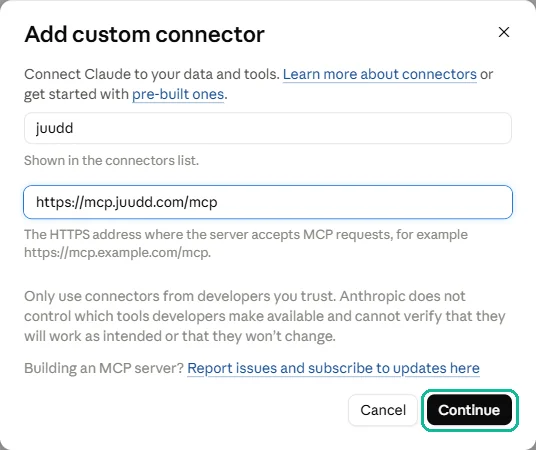
Paste the URL
Type juudd as the Name, paste the connector URL into MCP server URL, and click Continue.
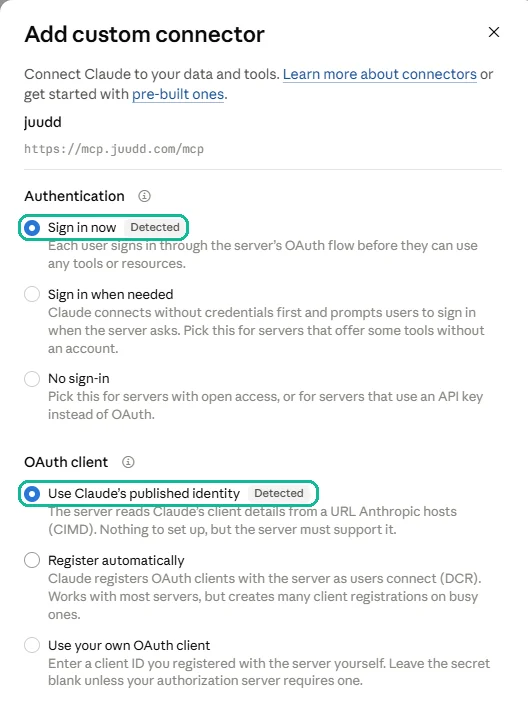
Keep what Claude detected, and click Add
The second step already has Sign in now and Use Claude’s published identity chosen, each marked Detected. Leave them as they are, scroll down, and click Add.
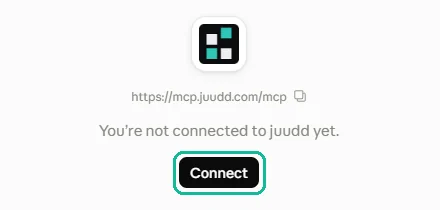
Sign in to juudd, once
The juudd page says you are not connected yet. Click Connect.
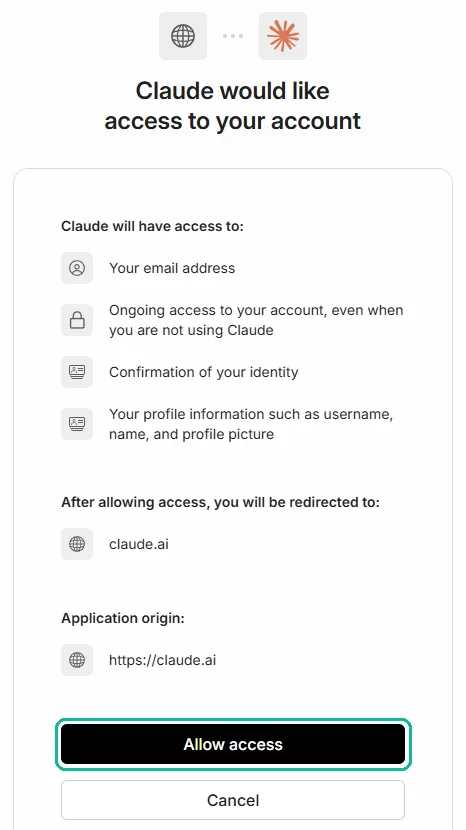
juudd’s sign-in page opens. Continue with your email or with Google. Then Claude asks for access to your juudd account: click Allow access.
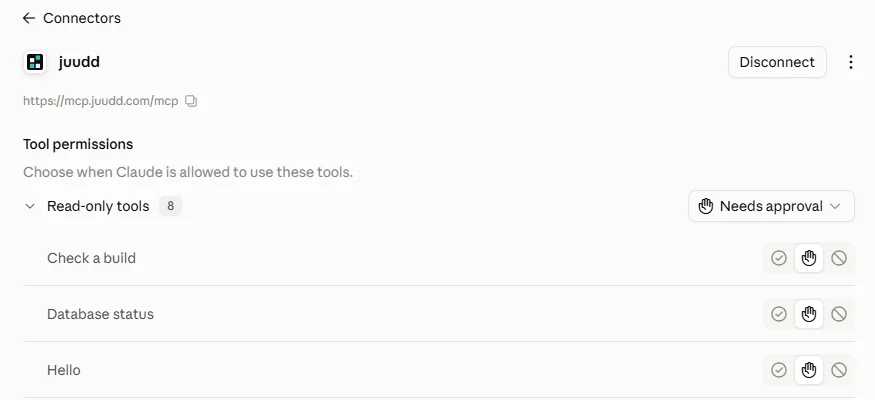
You land back in Claude, connected. Claude remembers it, so the next chat does not ask again.
Use it in a chat
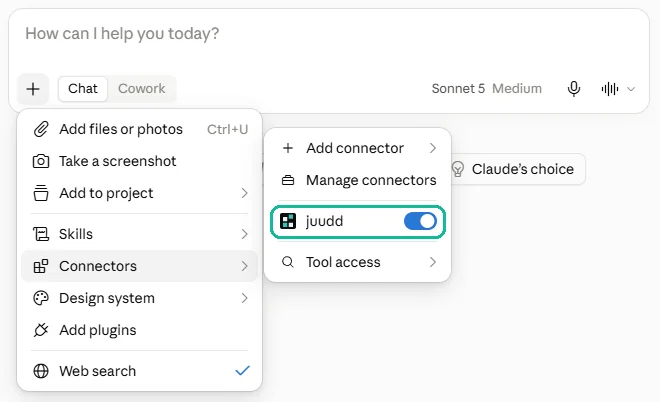
In a chat, click + under the message box and point at Connectors. juudd is there, already switched on.
The first time Claude wants a juudd tool, it asks you first: Allow once, Always allow, or Deny. Every tool starts on Needs approval, and the juudd page in Customize is where you change that.
Check that it worked
Type this into the chat, and allow the Hello tool when Claude asks:
“Say hello to juudd and tell me which account I’m signed in as.”
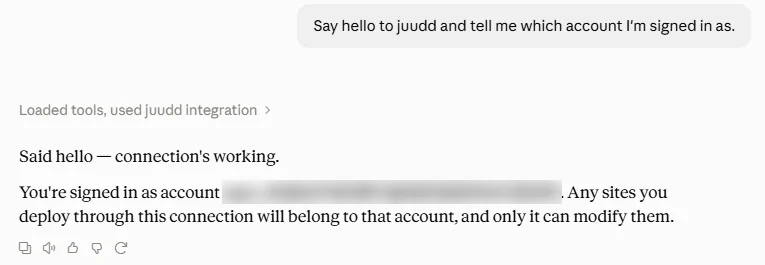
Claude answers with your juudd account. You are ready to ask for a website.
On a Team or Enterprise plan
Only an Owner or Primary Owner can add a custom connector for the organization. Everyone else then connects their own account. These steps follow Anthropic’s Help Center, since the pictures above come from a personal account.
If you are the Owner
Open Organization settings, then Connectors, and add a custom web connector.
Name it juudd, paste the connector URL, keep the detected choices, and add it.
If you are a member
Open Customize, then Connectors, find juudd, and click Connect. Sign in to juudd with your own account.
Each member signs in separately, so each member’s sites belong to their own juudd account.
If something goes wrong
Claude says it couldn’t reach the server.
Check the URL ends in /mcp. The address without /mcp answers “not found”. Remove the connector and add it again with the whole URL.
There is no way to add another custom connector.
Free allows one. Remove the one you have, or upgrade your Claude plan.
juudd is added, but Claude doesn’t use it.
Open Customize → Connectors → juudd. If it says you are not connected yet, click Connect and sign in. Then check the chat: + → Connectors, with juudd switched on.
Claude keeps asking before every tool.
That is the default. Choose Always allow when it asks, or set a tool to Always allow on the juudd page in Customize.
The sign-in page closed before it finished.
Click Connect on the juudd page again. Nothing was saved halfway.
Remove it
Open Customize → Connectors → juudd, click the ⋯ menu, and choose Remove. That only takes juudd out of Claude. Your sites stay online and every version stays kept. Add it again later and sign in, and they are all there.
Connected? How to use juudd walks through what to ask for next, in plain words.